





















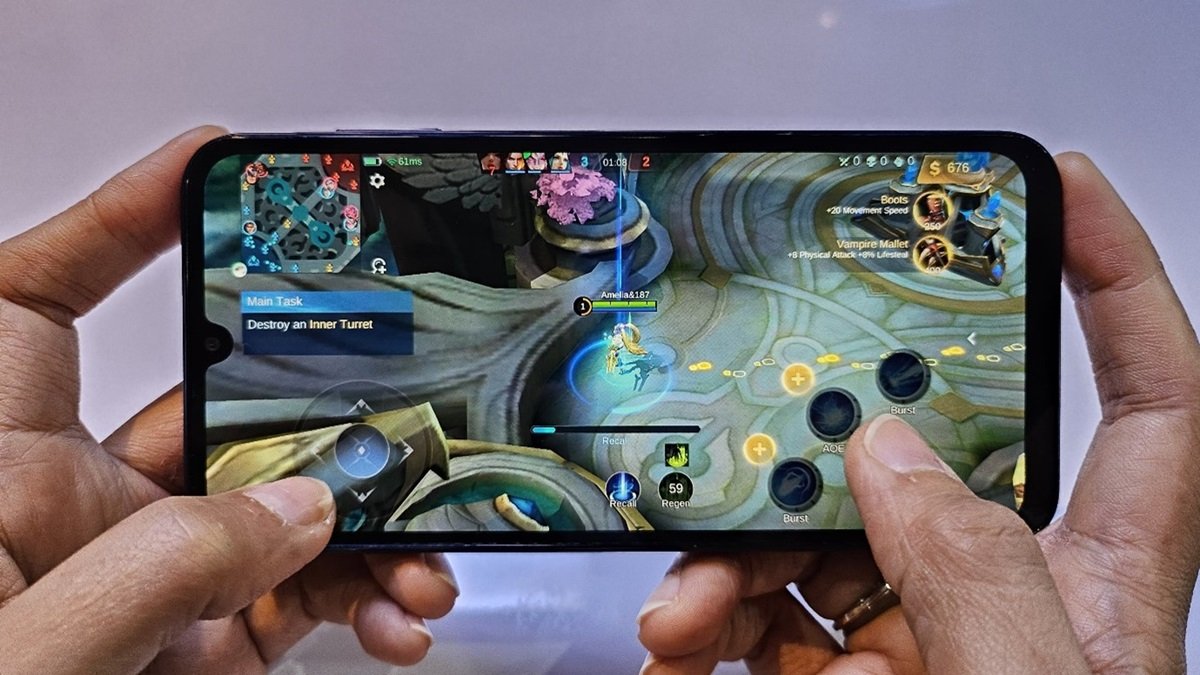

Samsung is indeed one of the leading brands to spawn various types of cellphones, including HP gaming. In addition to the HP being equipped with qualified specifications, there are also features to make the game more fun and exciting. One of the features to support playing games on the Samsung A25 5G HP is the Gaming Hub.
If by any chance you don't know or have just heard the term "Gaming Hub", here we will present complete, concise information on how to use the Gaming Hub for a smoother gaming experience. Please follow how to use the Gaming Hub below:
BAlso: 6 Advantages of Samsung A15 Series for More Comfortable Ngonten, Only 2 Millions!
How to Use Gaming Hub on Samsung A25 5G HP
Gaming Hub is a feature where you can organize and manage every game you have on Samsung phones, especially for the A25 5G series. So, what can we do in the Gaming Hub? Here's how to use the latest Gaming Hub update 2024.
1. How to Enable Priority Mode on Gaming Hub
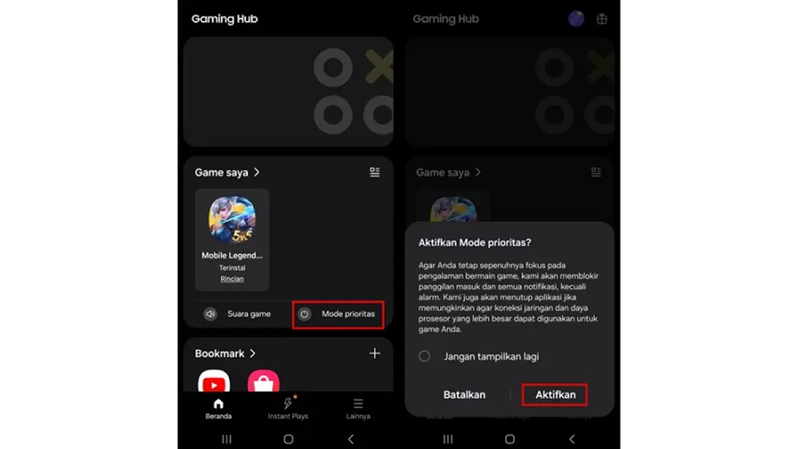
The Galaxy A25 5G has been equipped with the One UI 6 operating system in which there is a Gaming Hub application instead of Game Launcher.
With the Gaming Hub, you can manage your games to be more organized. The app automatically collects all the games installed on the Galaxy A25 5G into a single game hub. interfaceThis is to make it easier for users to find the games they want to play.
In addition, the Gaming Hub also offers control features, such as sound settings and Priority Mode. When Priority Mode is activated, the smartphone will block incoming calls and other notifications, and close background apps to allow gaming to run more smoothly.
To enable Priority Mode on the Gaming Hub, follow these steps:
- Open the Gaming Hub app.
- Select the 'Priority Mode' option.
- In the menu that appears, press on the "Enable" option to enable Priority Mode.
With this feature enabled, users can enjoy a more immersive and focused gaming experience, without being disturbed by unnecessary notifications or calls.
Also Read: 5 Advantages of Samsung A25 5G to Make Current Content Instantly hit!
2. How to Enable Game Booster on Gaming Hub
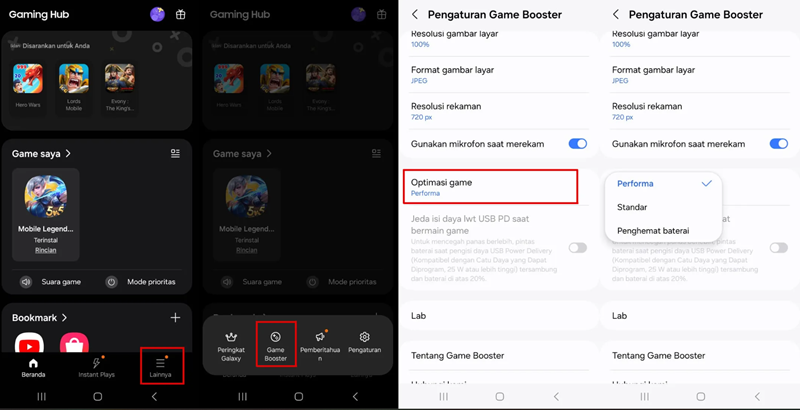
You can use this Gaming Hub to maximize performance while playing games. This feature allows users to customize the allocation of processor resources and battery usage according to your gaming preferences, be it for maximum performance, battery savings, or want to get both.
Game Booster provides three configuration options that users can choose from according to their needs, namely:
- Performance: This option is suitable for users who prioritize a smooth and responsive gaming experience with no lag.
- Battery Saver: Select this option if you want to play games for a long time without draining your battery.
- Standard: This option offers a balance between performance and battery efficiency, so gaming is smooth but not battery-intensive.
If you're interested in setting it up, you can use two methods, namely:
Set Game Booster Directly from the Game:
- While gaming, look out for the Game Booster icon located at the bottom left corner of the screen.
- Tap the icon to access the Game Booster settings directly from the game interface.
- Then, set the Game Booster according to your needs.
Set up Game Boosters Through the Gaming Hub App:
- Open the Gaming Hub app.
- In the bottom right corner, tap the 'More' icon.
- Select 'Game Booster'.
- Tap on 'Game optimization'.
- Then, select 'Performance', 'Standard', or 'Battery Saver' according to your desired gaming needs.
By activating and customizing Game Booster through any of these methods, users can enjoy a customized gaming experience.
Also Read: 7 Pros of Samsung Odyssey Gaming Monitor Introduced at CES
3. How to activate the Eye Comfort Shield
As we already know, the Samsung Galaxy A25 5G has a 6.5-inch FHD+ Super AMOLED screen specification with bright, clear and detailed images. This sharp image quality ensures that every detail in the game, such as textures, colors, and animations, is shown very clearly and accurately so that playing games is more comfortable.
Not only that, it is also supported by a refresh rate that can reach 120Hz, with claims of smoother and more responsive graphics transitions. There's even a Vision Booster for optimized display quality even when gaming outdoors.
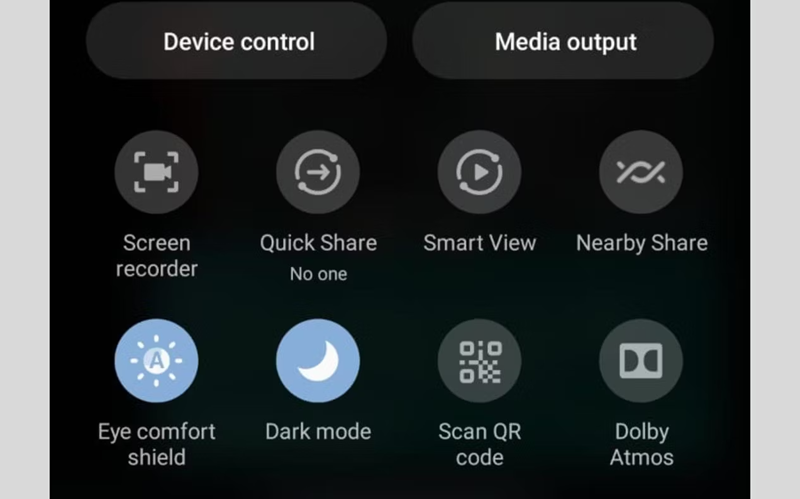
To keep your eyes comfortable while you game, the Galaxy A25 5G is equipped with the Eye Comfort Shield feature. This feature is designed to reduce blue light and optimize visual comfort without sacrificing color quality. Activating Eye Comfort Shield is easy, follow these steps:
- Swipe the screen from top to bottom twice to expand the control panel.
- Find and tap the Eye Comfort Shield icon, located under the screen brightness settings, to activate it.
That's how to use the Gaming Hub on the Samsung Galaxy A25 5G HP. Equipped with a premium audio system thanks to Dolby Atmos technology, this device promises a more immersive gaming experience.
The stylish design with Black Blue, Blue, and Yellow color options, makes this smartphone a great choice for the youth of today. now. If you are interested in buying, the price of this Samsung Galaxy A25 5G HP is at Rp3,999,000.
The price includes 6 months of Samsung Care+ protection worth Rp269,000 and cashback of up to Rp700,000, valid until February 9, 2024.